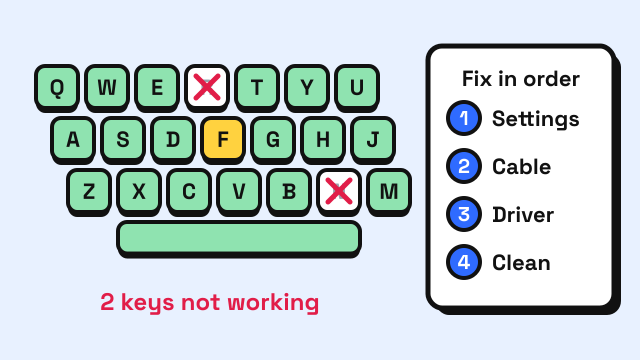
When keyboard keys stop working, find out exactly which keys fail before you change anything. Press every key in the keyboard tester and look at the pattern: one dead key points to dirt or a worn switch, a whole block of keys points to a connection or controller problem, and every key failing usually means a setting, a cable or a driver. Then work through the fixes in order of effort: settings, connection, driver, cleaning, and finally the hardware itself.
Which keys fail? Test before you fix
Open the keyboard tester, pick the size that matches your keyboard, and press each key once. A key turns yellow while you hold it and green once it has registered. Any key that stays white after a firm press is not sending a signal. The grouping of the dead keys tells you where to look.
| What the tester shows | Most likely cause | Start here |
|---|---|---|
| Every key stays white | Connection, driver, or an accessibility setting | Connection and settings |
| Number pad only | Num Lock is off, or Mouse Keys is on | Settings |
| F1–F12 do media or brightness instead | Fn lock or a function-key setting | Settings |
| One or two scattered keys | Dirt under the key, or a worn switch | Cleaning, then hardware |
| A row or block of neighbouring keys | Liquid damage, a loose ribbon cable or a faulty matrix row | Hardware |
| Keys drop out only when several are held | Ghosting or key rollover limit | Ghosting check |
| Keys register but print the wrong character | Wrong keyboard layout or input language | Settings |
One key is expected not to light up: Fn is handled inside the keyboard and never reaches the computer, so no tester can see it.
Is it a setting, not the keyboard?
Filter Keys (Windows). Filter Keys makes Windows ignore brief or repeated keystrokes, so quick taps look like nothing happened. Holding the right Shift key for eight seconds toggles it, which is easy to do by accident. Open Settings, then Accessibility, then Keyboard, and turn it off.
Slow Keys (Mac). Apple's own troubleshooting page says that if only some keys work, you should open System Settings, then Accessibility, then Keyboard, and make sure Slow Keys is off. With Slow Keys on, you have to hold a key longer than usual before it registers.
Num Lock and Mouse Keys. If the number pad types nothing, press Num Lock. If the pad moves the pointer instead, the Mouse Keys accessibility option is on.
Fn lock. On most laptops the F keys double as media keys. If F5 lowers the volume instead of refreshing the page, an Fn lock combination such as Fn + Esc was pressed. Press it again.
Keyboard layout. When keys register but produce the wrong character, the computer is using a different layout from the one printed on the keys. The tester shows which layout it detects from your keypresses; fix the mismatch in your language and keyboard settings.
Low battery on a MacBook. Apple notes that a MacBook may be showing a low-battery alert you cannot see. Plug in the charger or connect an external keyboard to reveal it.
Is it the connection?
If every key is dead and no setting is to blame, the keyboard is probably not talking to the computer at all. Microsoft's troubleshooting page lists the checks in this order:
- Unplug the keyboard, wait a few seconds and plug it back in.
- Try another USB port, plugged straight into the computer rather than through a hub.
- For wireless keyboards, replace or charge the batteries, then unplug the USB receiver, wait about ten seconds and reconnect it. For Bluetooth, remove the keyboard from the device list and pair it again.
- Test the keyboard on another computer. If it fails there too, the keyboard is at fault. If it works, the problem is a driver or software on your computer.
If you unplugged the keyboard while holding a key, Windows can keep treating that key as held. Pressing it once after reconnecting clears it.
Should you reinstall the keyboard driver?
On Windows, yes, once settings and the connection are ruled out. Open Device Manager, expand Keyboards, right-click your keyboard and choose Uninstall device, then restart. Windows installs a fresh driver on boot. If the keys stopped working right after an update, the Driver tab in the keyboard's Properties has a Roll Back Driver button. Running Windows Update also pulls in driver fixes.
A keyboard that works in the BIOS or UEFI setup screen but not in Windows is almost always a software problem. macOS has no keyboard driver to reinstall: restart the Mac, and if the built-in keyboard still fails while an external one works, Apple's page points you to Apple Support.
How do you clean a key that sticks or needs a hard press?
A single key that works only when you press hard, or that works intermittently, usually has crumbs or dust under it. Turn the computer off and unplug the keyboard first.
Apple's method for MacBook keyboards works for any laptop: hold the machine at about a 75-degree angle and spray compressed air across the keyboard from left to right, with the nozzle about half an inch away and the straw fitted. Rotate the laptop onto its right side and spray again, then onto its left side. Do not invert the can while spraying.
On a desktop mechanical keyboard you can pull the keycap off with a keycap puller, clear the switch with air and wipe the cap with a slightly damp cloth. Membrane and laptop keyboards are not designed for keycap removal, so stop at compressed air there.
After a spill, unplug the keyboard at once and let it dry for a day or two before testing. Keys that stay dead afterwards, or a whole row that fails, usually mean the traces under the keys have corroded.
Is it ghosting rather than a broken key?
If keys only go missing when you type fast or hold several at once, nothing is broken. The keyboard has hit its rollover limit, the number of simultaneous keys it can report. In the tester, hold A, S, D and F together and add more keys: each held key should stay yellow, and "Most keys at once" records the highest number your keyboard managed. A key that registers alone but drops out in combinations is being blocked, not failing. The keyboard ghosting guide explains why, and which keyboards avoid it.
When is the keyboard actually broken?
If a key fails on another computer, after cleaning, and on its own rather than in combinations, the switch or the circuit under it has worn out. Switches have finite lives: Cherry rates its MX Low Profile RGB mechanical switches for more than 100 million actuations, up from an earlier 50 million, and other makers quote figures in the same range. Membrane keyboards are rated far lower and are rarely worth repairing.
- Hot-swappable mechanical keyboard: pull the dead switch out and press a new one in.
- Soldered mechanical keyboard: a repair shop can replace the switch.
- Laptop keyboard: the whole assembly is swapped at a service centre. Until then, an external USB keyboard is the cheapest fix.
- Membrane desktop keyboard: replace it.
Run any new keyboard through the keyboard tester on day one, so you catch a dead key or low rollover while you can still return it.
Once everything lights up green, take the 1 minute typing test to see which keys you still miss, then drill them in the typing lessons.
Frequently asked questions
Why do some keyboard keys not work while others do?
Scattered single keys usually have dirt under them or a worn switch. A block of neighbouring keys points to liquid damage or a loose internal cable. A whole group such as the number pad or the F keys is almost always a lock key or setting.
How do I know if a key is broken or just dirty?
A dirty key works intermittently or needs a hard press; a broken one never registers. Clean it with compressed air first, and if it still fails in the keyboard tester on a second computer, the switch is worn.
Can I fix a laptop keyboard key myself?
A keycap that has popped off can often be clipped back onto its scissor mechanism. If the key is dead with the cap in place, the keyboard assembly needs replacing, which is a service job on most laptops.
Why does my keyboard type the wrong letters?
The operating system is using a different layout from the one printed on your keys, for example AZERTY instead of QWERTY, often because a shortcut switched the input language. Check the layout the keyboard tester detects, then fix it in your language and keyboard settings.
Sources
- Microsoft Support. Mouse and keyboard problems in Windows.
- Microsoft Support. Windows keyboard shortcuts for accessibility.
- Apple Support. If your Mac doesn't respond to key presses. macOS User Guide.
- Apple Support. How to clean the keyboard of your MacBook or MacBook Pro.
- Cherry. CHERRY MX Low Profile RGB: now over 100 million actuations and less than 1 millisecond bounce time. Cherry blog, February 2022.