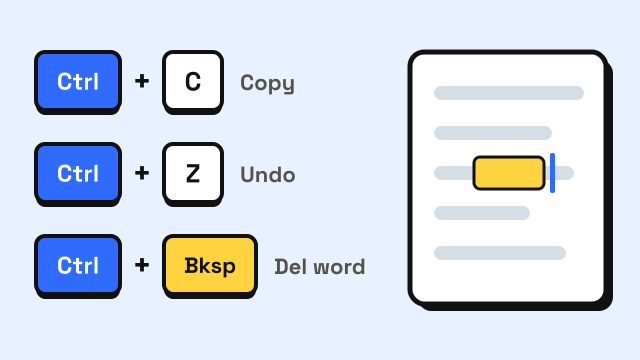
The keyboard shortcuts that speed up typing the most are the ones that edit text without the mouse: deleting a whole word (Ctrl+Backspace on Windows, Option-Delete on Mac), jumping the cursor by word or line, selecting text with Shift plus an arrow key, and the copy, cut, paste and undo combinations. Below are 40 shortcuts for Windows and Mac in six tables, grouped by what they do, followed by the order to learn them so they stick.
The shortcuts come from Microsoft's and Apple's own lists unless a row names browsers or a specific app. Some apps change shortcuts, so try each one where you write most.
Why do keyboard shortcuts make you type faster?
Real writing also means fixing mistakes, moving around the text and rearranging sentences. Each time you reach for the mouse, your hand leaves the home row, finds the mouse, aims, clicks and comes back.
Shortcuts keep both hands on the keyboard. If you already touch type, they fit straight into the skill you have: your fingers stay on the home row keys and the modifier keys (Ctrl, Alt, Shift, Command, Option) sit under your thumbs and pinkies.
A typing test measures pure text entry, so shortcuts won't raise that score. They help in everyday writing, where editing takes much of the time.
Which shortcuts should you learn first?
Start with the editing basics. Most people know copy and paste, but fewer use paste without formatting or redo.
| # | Action | Windows | Mac |
|---|---|---|---|
| 1 | Copy | Ctrl+C | Command-C |
| 2 | Cut | Ctrl+X | Command-X |
| 3 | Paste | Ctrl+V | Command-V |
| 4 | Paste without formatting | Ctrl+Shift+V (in many apps) | Option-Shift-Command-V |
| 5 | Undo | Ctrl+Z | Command-Z |
| 6 | Redo | Ctrl+Y | Shift-Command-Z (in most apps) |
| 7 | Select all | Ctrl+A | Command-A |
| 8 | Find | Ctrl+F | Command-F |
How do you delete a whole word at once?
When you make a mistake near the end of a word, deleting the whole word and retyping it is often faster than tapping Backspace and counting letters.
| # | Action | Windows | Mac |
|---|---|---|---|
| 9 | Delete the character to the right | Delete | Fn-Delete or Control-D |
| 10 | Delete the word to the left | Ctrl+Backspace | Option-Delete |
| 11 | Delete the word to the right | Ctrl+Delete | Option-Shift-Right Arrow, then Delete |
| 12 | Cut to the end of the paragraph | Shift+End, then Ctrl+X | Control-K (paste it back with Control-Y) |
On a Mac, Control-K and Control-Y use a separate clipboard that only the current app can see, so they don't replace what you copied with Command-C.
How do you move the cursor without the mouse?
Arrow keys move one character at a time. Adding a modifier makes each press jump further.
| # | Action | Windows | Mac |
|---|---|---|---|
| 13 | Previous word | Ctrl+Left Arrow | Option-Left Arrow |
| 14 | Next word | Ctrl+Right Arrow | Option-Right Arrow |
| 15 | Start of the line | Home | Command-Left Arrow |
| 16 | End of the line | End | Command-Right Arrow |
| 17 | Start of the document | Ctrl+Home | Command-Up Arrow |
| 18 | End of the document | Ctrl+End | Command-Down Arrow |
On many laptops Home and End need the Fn key. If one does nothing, check that the key registers in our keyboard tester.
How do you select text with the keyboard?
Take any movement shortcut above and add Shift: the cursor moves the same way, and everything it passes over is selected.
| # | Action | Windows | Mac |
|---|---|---|---|
| 19 | Select one character | Shift+Left/Right Arrow | Shift-Left/Right Arrow |
| 20 | Select one word | Ctrl+Shift+Left/Right Arrow | Option-Shift-Left/Right Arrow |
| 21 | Select to the start of the line | Shift+Home | Shift-Command-Left Arrow |
| 22 | Select to the end of the line | Shift+End | Shift-Command-Right Arrow |
| 23 | Select to the start of the document | Ctrl+Shift+Home | Shift-Command-Up Arrow |
| 24 | Select to the end of the document | Ctrl+Shift+End | Shift-Command-Down Arrow |
| 25 | Select to the start of the paragraph | Ctrl+Shift+Up Arrow (in Word) | Option-Shift-Up Arrow |
To move a sentence, select it, cut it, jump to the new spot and paste, all without the mouse.
Which formatting and file shortcuts are worth knowing?
These work in most word processors, email apps and editors. On Windows they use Ctrl, and on Mac they use Command with the same letter.
| # | Action | Windows | Mac |
|---|---|---|---|
| 26 | Bold | Ctrl+B | Command-B |
| 27 | Italic | Ctrl+I | Command-I |
| 28 | Underline | Ctrl+U | Command-U |
| 29 | Insert a link | Ctrl+K | Command-K |
| 30 | New document | Ctrl+N | Command-N |
| 31 | Open a file | Ctrl+O | Command-O |
| 32 | Save | Ctrl+S | Command-S |
| 33 | Ctrl+P | Command-P | |
| 34 | Close the window or tab | Ctrl+W | Command-W |
What about emoji, the clipboard and browser tabs?
The last group helps outside the document.
| # | Action | Windows | Mac |
|---|---|---|---|
| 35 | Emoji and symbols panel | Windows key+Period (.) | Control-Command-Space |
| 36 | Clipboard history | Windows key+V | No built-in shortcut |
| 37 | Switch between apps | Alt+Tab | Command-Tab |
| 38 | Next browser tab | Ctrl+Tab | Control-Tab |
| 39 | Reopen the last closed tab (browsers) | Ctrl+Shift+T | Shift-Command-T |
| 40 | Jump to the address bar (browsers) | Ctrl+L | Command-L |
Windows clipboard history has to be turned on the first time: press Windows key+V and select Turn on. It keeps up to 25 items, and everything except pinned items is cleared when you restart the PC.
How do you learn shortcuts so they stick?
Learning all 40 at once rarely works. Add them in small groups:
- Week 1: the basics (1–8).
- Week 2: deleting words (10–11). Every time you reach for Backspace more than twice in a row, use the word shortcut instead. This one changes your everyday typing the most.
- Week 3: moving by word and line (13–18). Make it a rule that you don't click to move the cursor inside a line.
- Week 4: selecting (19–25). This is just movement plus Shift, so it comes quickly once week 3 is done.
- Then the rest as you need them.
Two habits help:
- Find the modifier keys by touch. If you look down for Ctrl or Command, you lose your place in the text. Our guide on how to stop looking at the keyboard covers how to break that habit.
- Keep the letter keys under the usual fingers. Press Ctrl+C with the left pinky on Ctrl and the middle finger on C. On Dvorak, C, V, X and Z move, and so do these shortcuts.
Shortcuts pay off most once plain typing is steady. If yours is still building, the typing lessons go row by row, and Course 5: Numbers & Symbols covers the symbol keys that come up when you edit. For more on overall speed, see how to type faster.
Frequently asked questions
What is the shortcut to delete a whole word?
On Windows, Ctrl+Backspace deletes the word to the left of the cursor and Ctrl+Delete deletes the word to the right. On a Mac, Option-Delete deletes the word to the left.
Do Windows shortcuts work on a Mac?
Most work with Command in place of Ctrl, such as Command-C and Command-V. Cursor movement differs: Option plus an arrow moves by word, Command plus an arrow moves by line.
Why doesn't a shortcut work in my app?
Apps can replace system shortcuts. Check the app's menus, which list most shortcuts next to each command, and on laptops check whether the key needs Fn.
Will learning shortcuts raise my typing test score?
Not directly. A typing test measures text entry only. Shortcuts make you faster at real writing, where you also delete and rearrange text.
Sources
- Microsoft Support. Keyboard shortcuts in Windows.
- Microsoft Support. Using the clipboard.
- Microsoft Support. Keyboard shortcuts in Word.
- Apple Support. Mac keyboard shortcuts.