Typing practice for programmers is mostly symbol practice. Letters are the same as in any other text, but code is full of brackets, braces, quotes, semicolons, underscores and operators, and those keys sit on the edges of the keyboard where most people still look down. The fix is the same one that works for letters: give every symbol a fixed finger, use the opposite hand for Shift, and drill the symbols in the short groups that code actually uses, such as ();, { } and =>. This guide shows the finger for each programming symbol on a US QWERTY keyboard and gives you a daily routine.
Does typing speed matter for programmers?
Less than people expect, but more than zero. Most programming time is not spent typing. A study of IDE interaction logs from Java and Smalltalk developers found that navigating and editing code took only a small fraction of developers' time, while most of it went to reading and understanding code (Minelli et al., 2014).
So the goal is not a record WPM. The goal is that typing never interrupts thinking. If you have to glance down for every { or |, each glance pulls your attention away from the problem you are solving. Touch typing the symbols removes that break, and it speeds up the ordinary text you write too: chat, docs and commit messages.
Which finger types each symbol on a QWERTY keyboard?
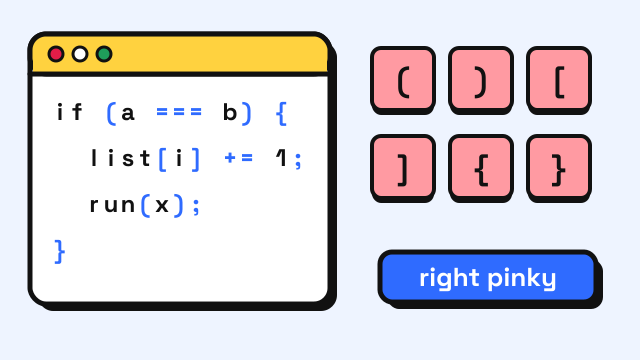
On a US QWERTY keyboard, most programming symbols belong to the right pinky. That is why they feel awkward. The table follows the same column rule as our touch typing finger chart: each key is pressed by the finger that owns its column.
| Symbol | Key (Shift?) | Finger | Shift with |
|---|---|---|---|
! @ # |
1, 2, 3 (Shift) | Left pinky, ring, middle | Right Shift |
$ % |
4, 5 (Shift) | Left index | Right Shift |
^ & |
6, 7 (Shift) | Right index | Left Shift |
* |
8 (Shift) | Right middle | Left Shift |
( ) |
9, 0 (Shift) | Right ring, right pinky | Left Shift |
- _ = + |
- and = keys | Right pinky | Left Shift for _ and + |
[ ] { } |
Keys right of P | Right pinky | Left Shift for braces |
\ | |
Key above Enter | Right pinky | Left Shift for | |
; : |
Home row, right of L | Right pinky | Left Shift for : |
' " |
Right of ; | Right pinky | Left Shift for " |
< > ? / |
Comma, period, slash (Shift) | Right middle, ring, pinky | Left Shift |
` ~ |
Left of 1 | Left pinky | Right Shift for ~ |
Some typists move a few of these to a neighboring finger, for example ] to the right ring finger to spare the pinky. That is fine. What matters is that each symbol always gets the same finger, so your hand stops having two plans for one key.
Why should you use the opposite Shift for symbols?
Look at the last column of the table. Almost every symbol on the right side needs left Shift, and the shifted digits on the left need right Shift. Using the Shift key on the same side as the symbol forces one hand into a stretch, for example the right pinky on right Shift while the right ring finger reaches up for (.
Opposite Shift splits the job across both hands, so the symbol hand stays near home. Practice capitals with the same rule in the capital letters and punctuation lesson before you add symbols.
Which symbol pairs come up most in code?
Code reuses a small set of short patterns. Practicing them as units, the way your fingers already know common letter pairs, pays off faster than drilling single keys.
| Pattern | Where you see it | Tip |
|---|---|---|
() and (); |
Function calls, statements | Ring then pinky, pinky stays down for ; |
{ } |
Blocks, objects | Hold left Shift through both braces |
[ ] |
Arrays, indexes | Pinky only; keep the index finger on J |
=> and -> |
Arrow functions, return types | Pinky to ring for => |
==, !=, === |
Comparisons | Double-tap without lifting the pinky far |
&& and || |
Conditions | Left Shift held, tap twice |
"" and '' |
Strings | Right pinky; Shift with the left hand for double quotes |
snake_case |
Names in Python, Ruby, SQL | Left Shift + right pinky for _ |
// comment |
Comments in many languages | Right pinky twice, no Shift |
Many editors close brackets and quotes for you. Pick auto-closing on or off and keep it that way, so your fingers learn one behavior.
How should programmers practice typing symbols?
Try this 10-minute routine on most days:
- Two minutes of home-row warm-up. Plain words, eyes on the screen. Our typing warm-up exercises list a few.
- Three minutes of single symbols. Work through Course 5: Numbers & Symbols in the typing lessons. It drills the number row and the symbols above it,
@ # $ %,^ & * ( )and- _ = +, with an on-screen finger guide. - Three minutes of code patterns. Open a plain text file and type the patterns in the table above, ten times each, without looking down. Then copy a short function from a project you know, symbol for symbol.
- Two minutes of ordinary prose. Take a 1-minute typing test to keep letter speed steady, because most of what you type at work is still words.
Keep accuracy above speed. In code, a wrong character is not a typo you can ignore; it is a bug or a failed build. The habits in our guide on improving typing accuracy apply even more here. When you want practice under a bit of time pressure, the Typing Challenge scrolls lines of book text with punctuation and capitals up the screen, so you have to keep your eyes on the text.
Do programmers need a special keyboard layout?
No. Most programmers type on standard QWERTY and do well. A few layouts are built for code. The best known is Programmer Dvorak, created by Roland Kaufmann, which puts brackets and symbols on the unshifted top row and moves the digits to Shift, on the idea that programmers type symbols more often than numbers (Kaufmann). Switching layouts costs weeks of slower typing, so try it only if you enjoy the process; our QWERTY vs Dvorak vs Colemak guide covers the trade-offs.
Smaller changes often help more. Some developers remap Caps Lock to Ctrl or Esc, which puts a key they press all day under the left pinky on the home row. If you use Vim, its layout has history behind it: the ADM-3A terminal that vi was written on had arrows printed on H, J, K and L and the Esc key where Tab is today, one finger from the home row (ADM-3A, Wikipedia).
If you are choosing hardware, a compact board can hide the symbols you need behind a function layer. Our guide to keyboard sizes shows which sizes keep the full symbol set, and the keyboard tester lets you confirm every bracket key registers.
Frequently asked questions
What is a good typing speed for a programmer?
There is no official standard, and code is usually typed slower than prose because of the symbols. Compare your prose speed with the benchmarks in average typing speed. A steady speed with almost no errors matters more than the number.
Which finger should type curly braces?
On US QWERTY, { and } are on the two keys to the right of P, so the right pinky types both while the left pinky holds Shift.
Should I learn to touch type numbers too?
Yes, but symbols usually come first for programmers. Digits matter for constants, ports and array indexes; our guide on typing numbers faster covers the number row and keypad.
How long does it take to touch type symbols?
It depends on practice time. Many people still think briefly about rare symbols such as ^ or ~ long after letters feel automatic, so keep a few minutes of symbol work in your routine.
Sources
- Minelli, R., Mocci, A., Lanza, M., and Kobayashi, T. (2014). Quantifying Program Comprehension with Interaction Data. 14th International Conference on Quality Software (QSIC), 276–285.
- Kaufmann, R. Programmer Dvorak Keyboard Layout.
- Wikipedia. ADM-3A.