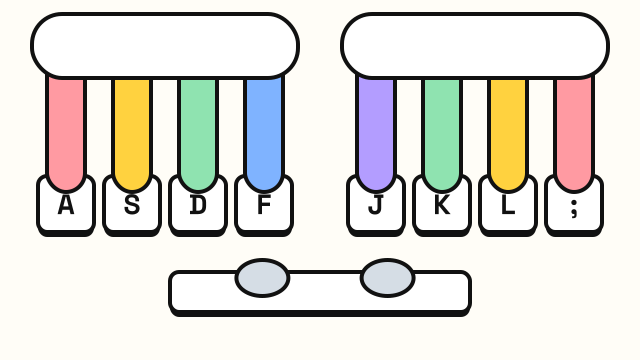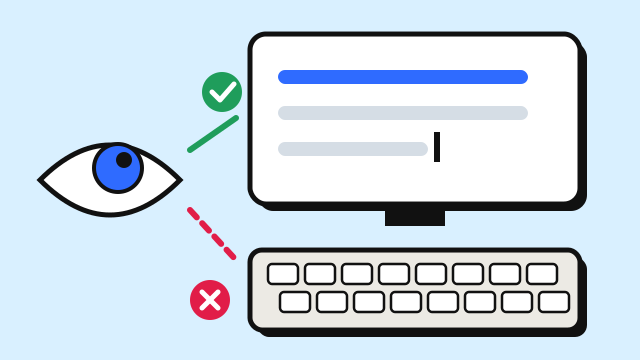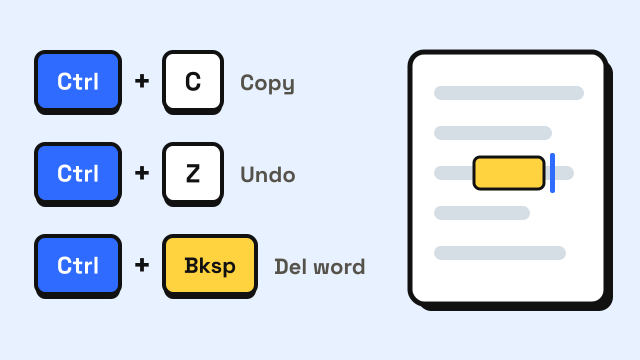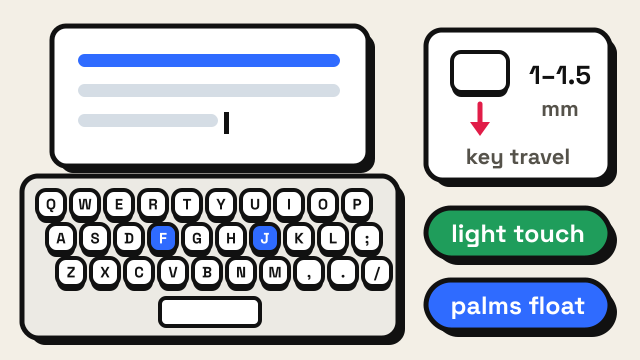
Yes, you can type with all ten fingers on a laptop, and the method is the same as on any keyboard: rest your fingers on A S D F and J K L ;, find the bumps on F and J, and let each finger reach only its own keys. What changes is the setup around the keys. Laptop keys are shallower, the touchpad sits right under your palms, and the screen and keyboard are joined, so you can't put both at a comfortable height.
Does 10 finger typing work the same on a laptop?
The finger map doesn't change. On a 13-inch or larger laptop, the letter keys keep the same QWERTY layout and are usually spaced close to a desktop keyboard, so the finger zones in our touch typing finger chart apply as they are.
What differs is the edges of the keyboard and the feel of each press:
| Typical desktop keyboard | Typical laptop keyboard | |
|---|---|---|
| Letter keys | Full size | Full size or slightly smaller on compact models |
| Key travel | Commonly cited around 3–4 mm | Often about 1–1.5 mm |
| Number pad | Usually present on full-size boards | Usually missing, except on some 15–17 inch models |
| Arrow and edit keys | Separate cluster | Squeezed into the corner, often half height |
| Palm area | Desk or wrist rest | Touchpad and palm rest |
| Height | Can be placed lower than the screen | Fixed to the screen |
If you haven't learned the finger positions yet, start with 10 finger typing for beginners and the home row keys.
How do I find the home row on a laptop?
Most laptop keyboards have a small raised bump or line on F and J. On flat, low-profile keys it can be faint, so press your index fingers onto the keys at the start of each session to feel for it. If your laptop has no bump you can feel, a tiny dot of clear nail polish or a small clear bump sticker on F and J does the same job.
Once your index fingers are on F and J, let the other fingers fall onto the keys next to them. Because laptop keyboards often have no gap between the edge of the case and the A key or the semicolon key, the pinkies can drift off the board. Before you start typing, check that your left pinky is on A and your right pinky is on the semicolon, not on Caps Lock or the apostrophe.
How do I type on shallow laptop keys?
Shallow keys reward a light touch. A typical laptop key registers well before your finger feels it stop, so pressing all the way down and hard just sends more force back into your fingers. Try these adjustments:
- Press, don't strike. Aim to tap each key just far enough to register, then lift. Many people find their accuracy improves when they stop hammering.
- Keep fingers curved. Flat fingers on a flat keyboard tend to brush neighboring keys and cause extra letters.
- Return to the home row after every reach. With little key travel, you get less feedback about where your finger landed. Coming back to F and J resets your position.
- Watch for very short keys. In a study of 20 typists on four laptop-style keyboards, the device with the shortest travel (0.55 mm) and a dome switch was linked to about 8% slower typing, 12% higher typing force and roughly twice the discomfort of the others. The authors noted that travel alone did not predict force or muscle activity, so the switch design mattered too (Coppola et al., 2019).
That doesn't mean every slim laptop slows you down; the 1.3 and 1.6 mm keyboards did not stand out the same way. If your laptop keys feel mushy or miss presses, the keyboard tester will show which keys register and which don't before you blame your technique. For a wider look at key feel, see does a mechanical keyboard make you type faster?
What about the touchpad and palm rest?
The touchpad sits right below the space bar, where your palms or thumbs naturally hover. Brushing it can move the cursor mid-word and drop your text somewhere else. A few fixes:
- Float your palms. Keep your palms slightly above the palm rest while you type, as you would on a desktop keyboard. Rest them during pauses only.
- Use one thumb for the space bar and keep the other relaxed above it, not resting on the touchpad's top edge.
- Check the touchpad settings. Windows and macOS both let you turn off tap to click, which stops many accidental cursor jumps.
How should I sit when typing on a laptop?
On a desk, the keyboard is at a fair height but the screen is too low. Raise the laptop to lift the screen and the keyboard rises with it.
Where you put the laptop matters. In a study of 15 adults, using a laptop on the lap instead of a desk increased forward head tilt by 6 degrees and wrist extension (wrists bent back) by 8 degrees. A lap desk improved head tilt and wrist extension compared with the bare lap, but every setup still had high wrist extension and downward head tilt, and people reported the least discomfort with the laptop on a desk (Asundi et al., 2010).
For short sessions, these habits help:
- Use a table, not your lap. Sit back with your feet flat and the laptop close enough that your elbows stay near your sides.
- Keep your wrists level. Don't let them drop below the front edge of the laptop or bend sharply upward. Floating the palms helps here too.
- Tilt the screen, not your neck. Push the screen back far enough that you can read it without bending your head forward.
- Take breaks. Stand up, look into the distance and roll your shoulders every half hour or so.
Our typing posture guide has a full checklist for chair, desk and screen height.
Should I use an external keyboard with my laptop?
If you type on your laptop for hours every day, an external keyboard usually makes sense. OSHA's computer workstation guidance notes that smaller keyboards, such as those on laptops, may contribute to stressful postures, and recommends providing full-sized keyboards and monitors when a laptop is the main work computer and the job involves a lot of keyboard use (OSHA Computer Workstations eTool).
The usual setup is a laptop stand that lifts the screen to about eye level, plus a separate keyboard and mouse on the desk, so the screen goes up and the keyboard stays low.
Practicing on one keyboard and typing on another is fine. Touch typing transfers between keyboards because your fingers learn the layout, not one specific board. Expect a few small errors on edge keys like Backspace and Enter when you switch. If you're choosing a keyboard, 60% vs 75% vs TKL explains what each size leaves out.
How do I practice 10 finger typing on a laptop?
Practice on the keyboard you'll actually use most: the built-in one if you type on the go, the external one if you plug in at a desk.
A simple routine:
- 5 minutes of warm-up on the home row in the typing lessons. The lessons light up the next key and show which finger to use, which helps you find the edges of a compact keyboard without looking down.
- 5–10 minutes of lessons at your current level, keeping accuracy around 95% before pushing for speed.
- One 1-minute typing test a few times a week to track progress.
If the shallow keys make you look down more than usual, the tips in how to stop looking at the keyboard apply just as well on a laptop.
Frequently asked questions
Is it harder to touch type on a laptop?
The finger positions are the same, so the skill is the same. Most of the difficulty comes from shallow keys, the touchpad and a low screen. A light touch, floating palms and a table instead of your lap solve most of it.
Can I learn to touch type on a laptop?
Yes. Make sure you can feel the bumps on F and J, keep the touchpad from catching your palms, and practice in short daily sessions.
Will I type slower on a laptop than on a desktop keyboard?
Many people type at about the same speed once they're used to it. A large gap usually has a specific cause, such as keys that don't register or an awkward position. Take a typing test on each keyboard to compare.
Do I need a number pad for 10 finger typing?
No. Touch typing covers the letter keys and the number row above them, which every laptop has. If you enter a lot of numbers, see how to type numbers faster for both the number row and the 10-key pad.
Sources
- Coppola, S. M., Dixon, P., Hu, B., Lin, M. H., & Dennerlein, J. T. (2019). Going Short: The Effects of Short-Travel Key Switches on Typing Performance, Typing Force, Forearm Muscle Activity, and User Experience. Journal of Applied Biomechanics, 35(2), 149–156 (20 participants; 0.55 mm dome-switch device about 8% slower, 12% higher force, about twice the discomfort).
- Asundi, K., Odell, D., Luce, A., & Dennerlein, J. T. (2010). Notebook computer use on a desk, lap and lap support: effects on posture, performance and comfort. Ergonomics, 53(1), 74–82 (15 adults; lap vs desk: 6° more head tilt, 8° more wrist extension).
- U.S. Occupational Safety and Health Administration. Computer Workstations eTool: Keyboards and Additional Information.