You can learn to type at any age. The gentlest way to start as a senior is to make the screen easy to read first, practice for 10–15 minutes a day, learn the eight home row keys before anything else, and care about getting keys right rather than going fast. Lessons with no countdown timer suit beginners best, and short, friendly games can keep practice from feeling like homework. This guide walks through the setup, a first-month routine and what kind of progress to expect.
Is it too late to learn typing as a senior?
No. Research on older typists is encouraging. In a well-known study, psychologist Timothy Salthouse compared skilled typists of many ages. Older typists were slower on simple tests such as reaction time and finger tapping, yet their typing speed was not lower than that of younger typists. The explanation he proposed was that experienced older typists look further ahead in the text, preparing the next keys earlier (Salthouse, 1984).
That study looked at people who were already skilled, so it doesn't promise that a beginner of 75 will learn as fast as a beginner of 20. It does show that typing is built on practice and planning, not only on fast fingers.
A Pew Research Center survey from 2021 found that 75% of Americans aged 65 and older use the internet and 61% own a smartphone, both much higher than a decade earlier (Pew Research Center, 2022). Emails, messages, search boxes and online forms all go faster when you can type comfortably.
How do I make the screen easier to see?
Set this up once before your first lesson. Straining to read small letters makes practice tiring for no good reason.
- Zoom the page. In most browsers, press Ctrl and + (on a Mac, ⌘ and +) to make everything on the page bigger. Press it again for more, and Ctrl and 0 to go back to normal (Google Chrome Help).
- Set a bigger default. If you always want larger pages, your browser's settings let you change the default page zoom or font size, so you don't need to zoom every time.
- Use a bigger screen if you have one. A laptop or desktop is easier for learning than a phone or tablet.
If you wear reading glasses or varifocals, check that you can see the screen without tilting your head back.
What keyboard and setup work best?
Any standard keyboard with keys that are easy to press is fine. Sit so your forearms are roughly level with the desk, shoulders relaxed and feet flat on the floor, with your hands floating lightly over the keys.
Our typing posture guide has a simple checklist. You can also check that every key on your keyboard works with the keyboard tester before you start, which saves confusion later.
If typing ever causes pain, stop and rest. If the pain continues, talk to a doctor before carrying on.
Where should a beginner start?
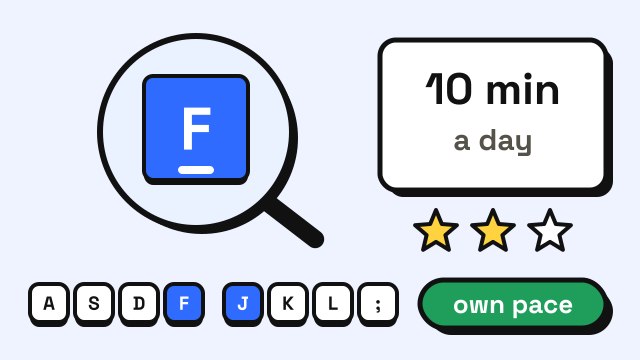
Start with the home row: the keys A S D F for the left hand and J K L ; for the right. Your fingers rest there between keystrokes, and every other key is a short reach away from it. The F and J keys have small bumps so you can find them without looking. The home row keys guide shows exactly where each finger goes.
On this site, the free typing lessons start with the home row and add two keys at a time. They are a good fit for a gentle start because:
- There is no countdown timer. You type at your own pace, and the lesson waits for you.
- The on-screen keyboard lights up the next key, and a hand guide shows which finger to use.
- You don't need to press the space bar between words in lessons, so you can focus on letters.
- No account is needed. Your progress is saved in your browser on that computer.
If you've used a computer for years with two fingers, it's still worth starting at the home row. The hunt and peck vs touch typing guide explains why the switch pays off and what to expect during the first slow weeks.
How long should each practice session be?
Short. 10–15 minutes a day is a comfortable target for most beginners, and some people prefer two sessions of 5–10 minutes. Short sessions are easier on the hands and eyes.
A classic study by Alan Baddeley and D. J. A. Longman trained adult postal workers to use a keyboard on different schedules. The group that practiced in short daily sessions learned most efficiently for each hour spent, and the group that crammed into long sessions learned least efficiently (Baddeley & Longman, 1978). The lesson for any age: a little every day works better than a lot once a week.
A gentle first month
| Week | Focus | Each day (10–15 min) | Sign you're ready to move on |
|---|---|---|---|
| 1 | Setup and home row | Zoom the screen, 10 min of home row lessons | You can find F and J by touch |
| 2 | Home row, then top row | 10 min of lessons, a few minutes of a slow game | Home row keys feel familiar |
| 3 | Top row and short words | 10 min of lessons, 5 min of Listen and Type | You rarely look down for E, I, R or T |
| 4 | Bottom row and capitals | 10 min of lessons, then type a short real message | You can type a short email without looking for most letters |
This is a guide, not a deadline. If week 1 takes two weeks, that's fine. Keep your eyes on the screen (these tricks help) and press each key with the same finger every time.
Which games are good for older beginners?
Choose games that don't rush you at first:
- Listen and Type shows a picture, says the word out loud and lets you type it at your own pace. The Easy level shows every letter in light gray, so you can copy while you learn where the keys are. It was made with children and English learners in mind, but the calm pace suits any beginner.
- Monster Typing Game uses short words, and the Daily Monster gives you a small reason to come back each day.
Save fast-paced games for later, once you can type without searching for keys. The typing games for adults guide compares them.
How fast will I get?
Speed is not the goal in the first month. Aim for accuracy first: most typing teachers suggest getting about 95% of keys right before trying to go faster. The guide on how to improve typing accuracy explains why.
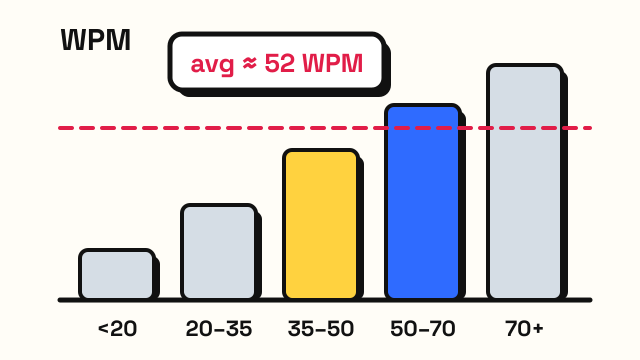
Speeds vary a lot from person to person. As a reference point, the lessons on this site ask for 10 WPM to pass the home row levels and 20 WPM by the bottom row, always at 95% accuracy. The commonly quoted adult average is around 40 WPM, which our average typing speed guide puts in context.
When you're curious, take a 1-minute typing test once a week and compare it with the week before. A single test can easily move a few WPM either way, so don't worry about one low result.
Frequently asked questions
Can a 70- or 80-year-old learn to touch type?
Yes. Learning may take longer than it would for a younger person, but the method is the same: home row first, a few minutes each day, accuracy before speed. Research on skilled older typists shows typing ability doesn't simply fade with age.
Do I need a special keyboard for seniors?
No. Any standard keyboard works. Large-print keyboards exist, but the aim of touch typing is to stop looking at the keys, so they are optional. Comfort and keys that are easy to press matter more.
How long does it take a senior to learn to type?
Most people can learn where all the letters are within a few weeks of daily practice, and comfortable everyday typing usually follows over the next few months. Our guide on how long it takes to learn touch typing covers the stages in more detail.
Is it better to learn on a tablet or a computer?
A computer or laptop with a physical keyboard is better for learning touch typing, because you can feel the keys and the bumps on F and J. Phone and tablet typing is a different skill; see mobile typing speed for that.
Sources
- Salthouse, T. A. (1984). Effects of age and skill in typing. Journal of Experimental Psychology: General, 113(3), 345–371.
- Faverio, M. (2022). Share of those 65 and older who are tech users has grown in the past decade. Pew Research Center.
- Baddeley, A. D., & Longman, D. J. A. (1978). The influence of length and frequency of training session on the rate of learning to type. Ergonomics, 21(8), 627–635.
- Google. Change text, image and video sizes (zoom). Google Chrome Help.